HOW TO USE CADY

To use CADY, all you need is to do is to upload your Netlist and BOM files

Netlist

CADY supports various netlist formats from all major ECAD vendors.

Please choose your ECAD environment below for an export guideline of the relevant netlist:

Choose your ECAD Environment

BOM

Any .csv/.xlsx/.xls file is supported, as long as it contains at least one manufacturer part number for each part reference.

Feel free to download and review a template here:

CADY user Guide

Siemens (Xpedition / DxDesigner / PADS) Netlist File Export

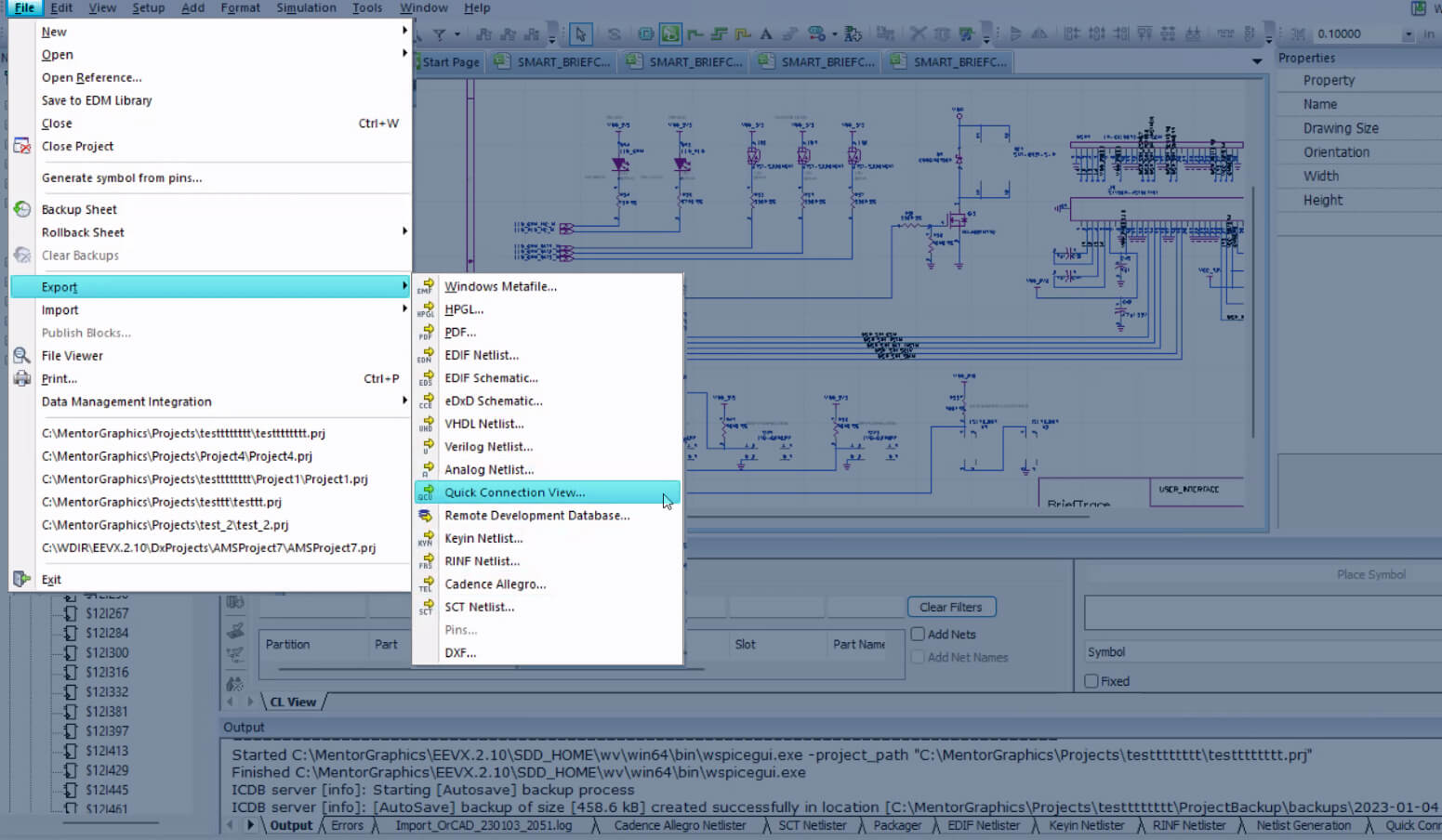
Go to File -> Export -> Quick Connection View…

example

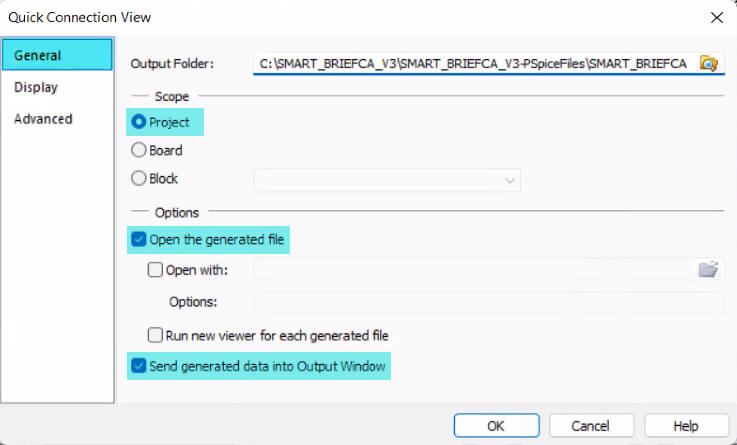
To export the netlist, press OK. For a new project, first configure the settings as shown in the next steps

example

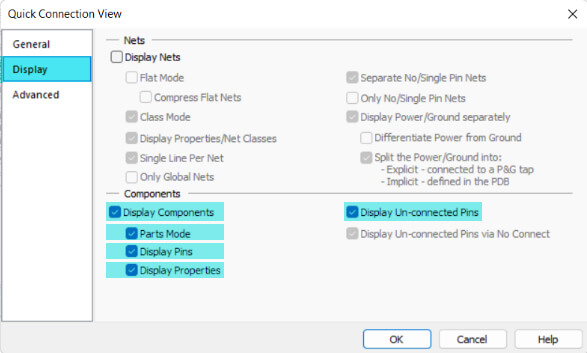
Go to the “Display” tab and select as shown below.

example

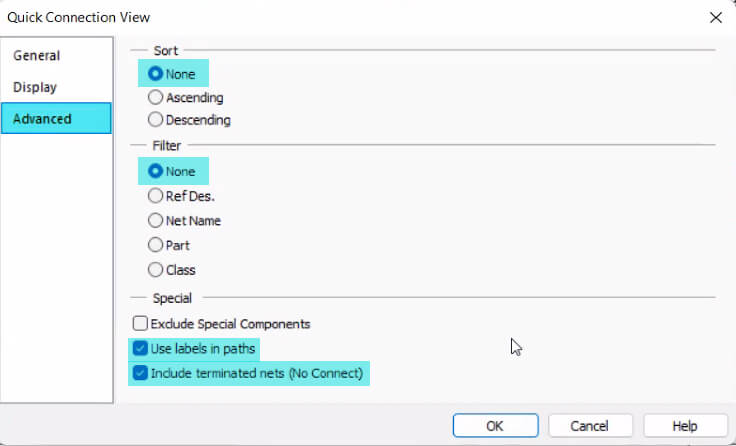
Go to the “Advanced” tab, set the “Filter” to “None”, and select the checkboxes as shown below.

example

Cadence (OrCAD/HDL/Concept) Netlist File Export

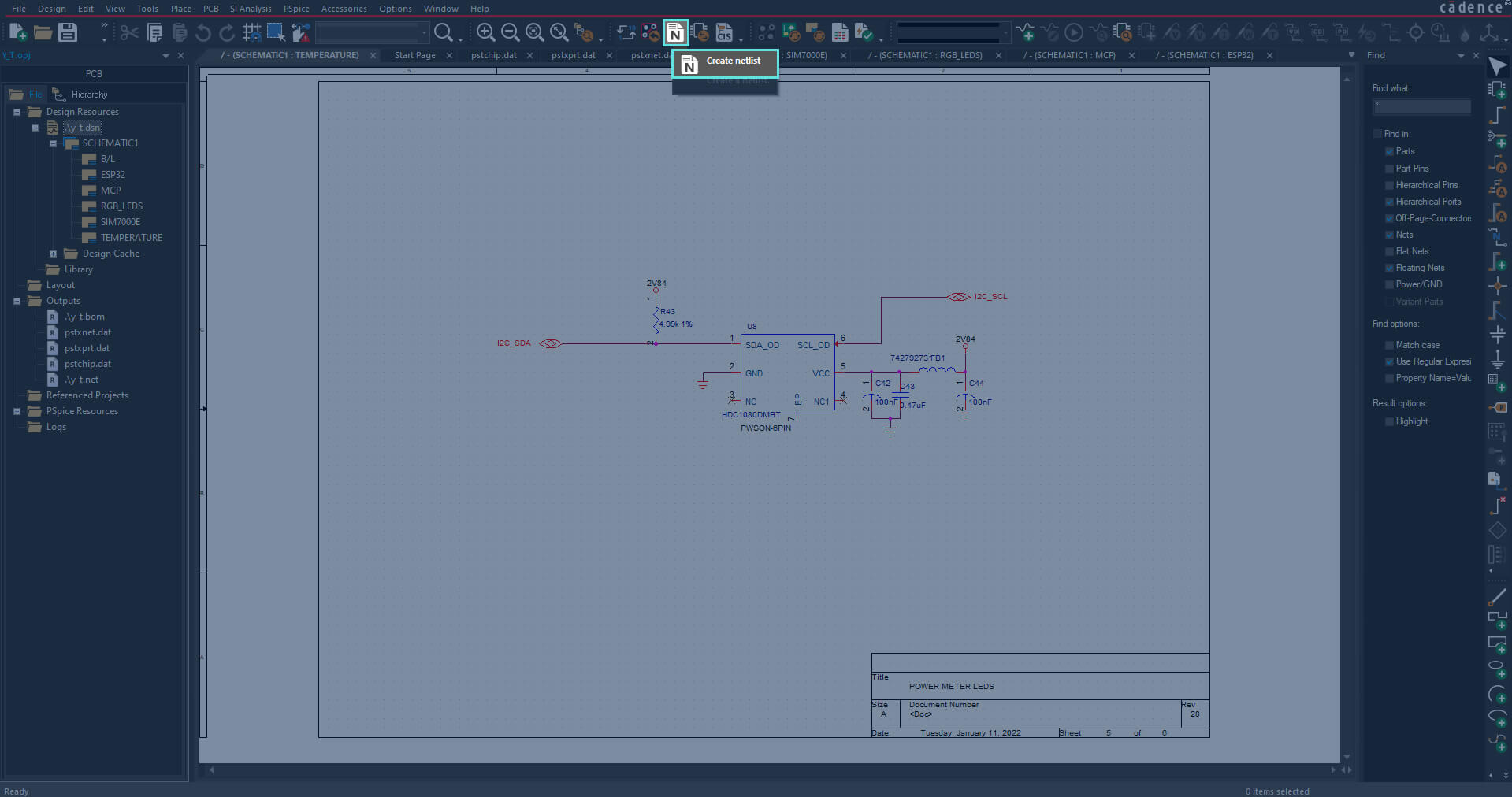
Click the “Create Netlist” at the top.

example

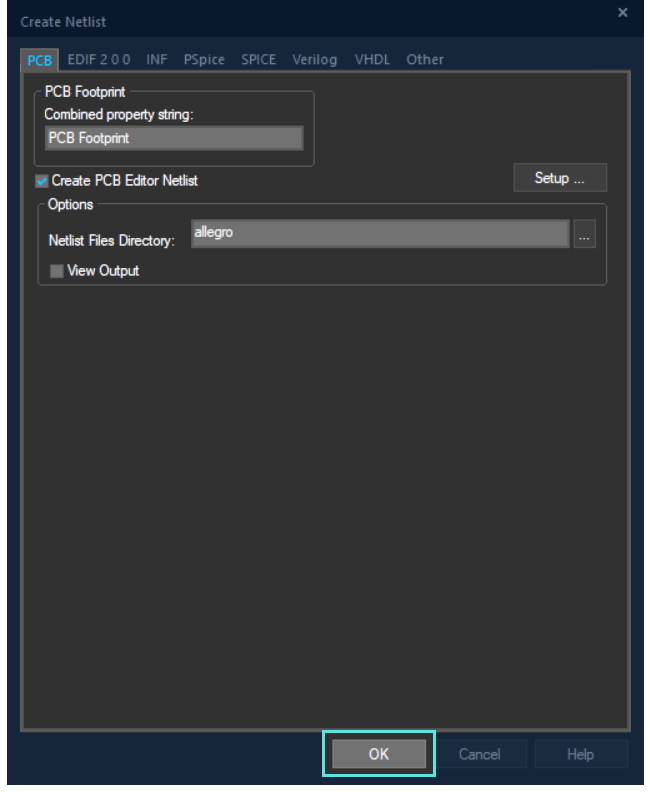
Then, on the following pop-up, press “OK”.

example

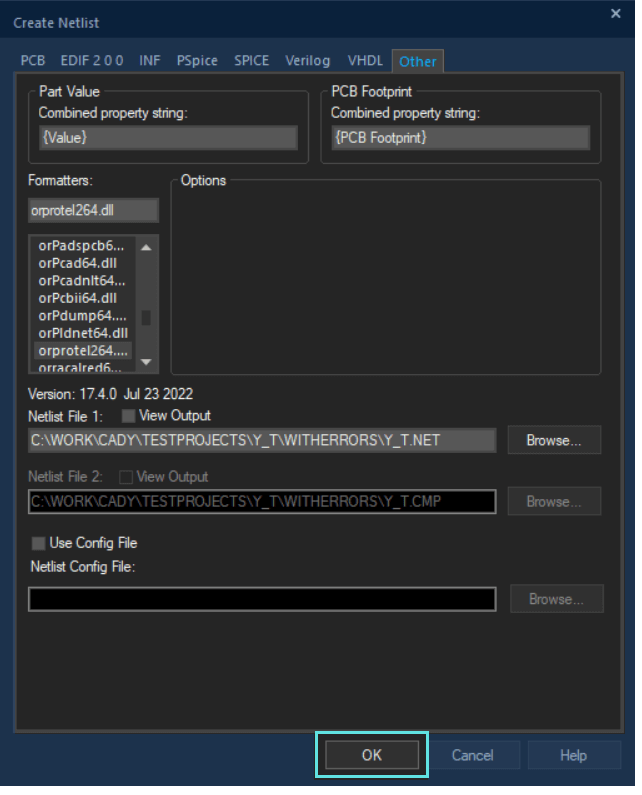
In case of issues with the Netlist, please verify that the settings in the “Other” tab are as follows

example

Altium Netlist File Export

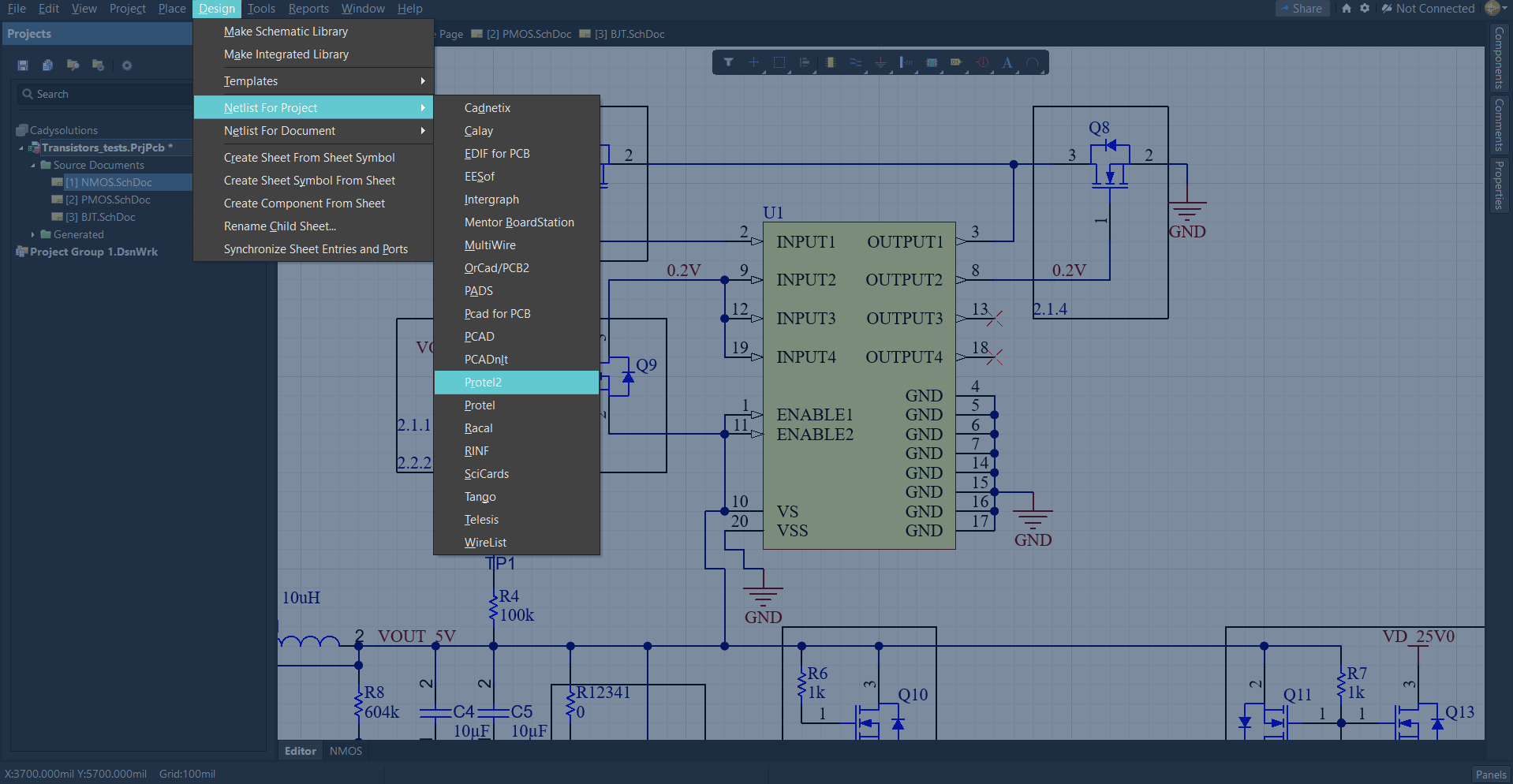
While viewing any “.SchDoc” file, navigate to Design -> Netlist For Project -> Protel2

example

The file can be found in your project directory at “Projects Output For <project name>”

KiCad Netlist File Export

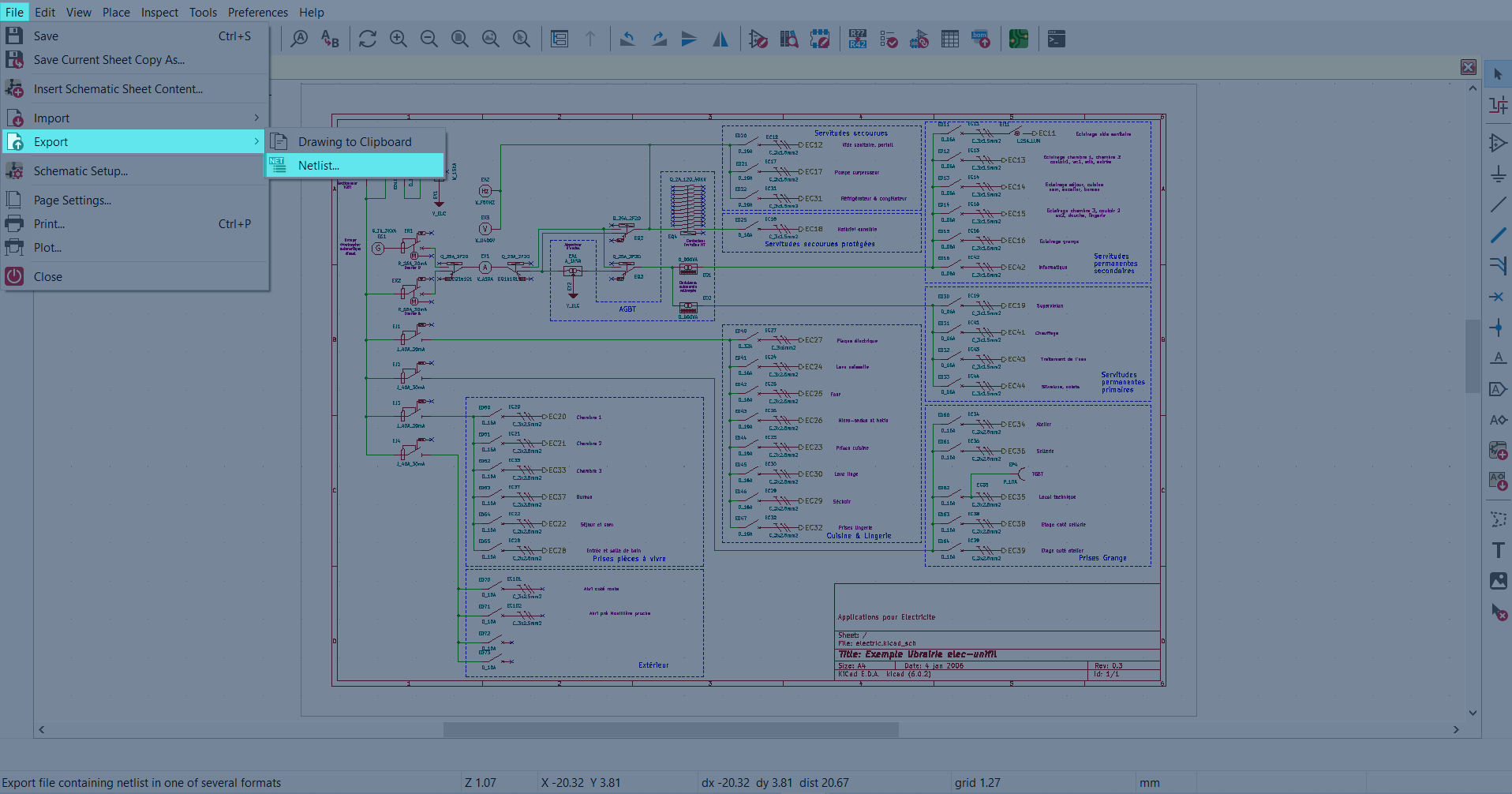
Navigate to File -> Export -> Netlist

example

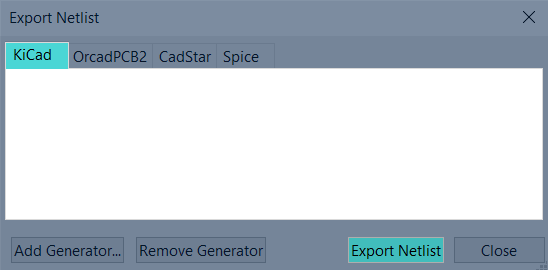
“Then, on the KiCad tab, select “Export Netlist”

example

Eagle Netlist File Export

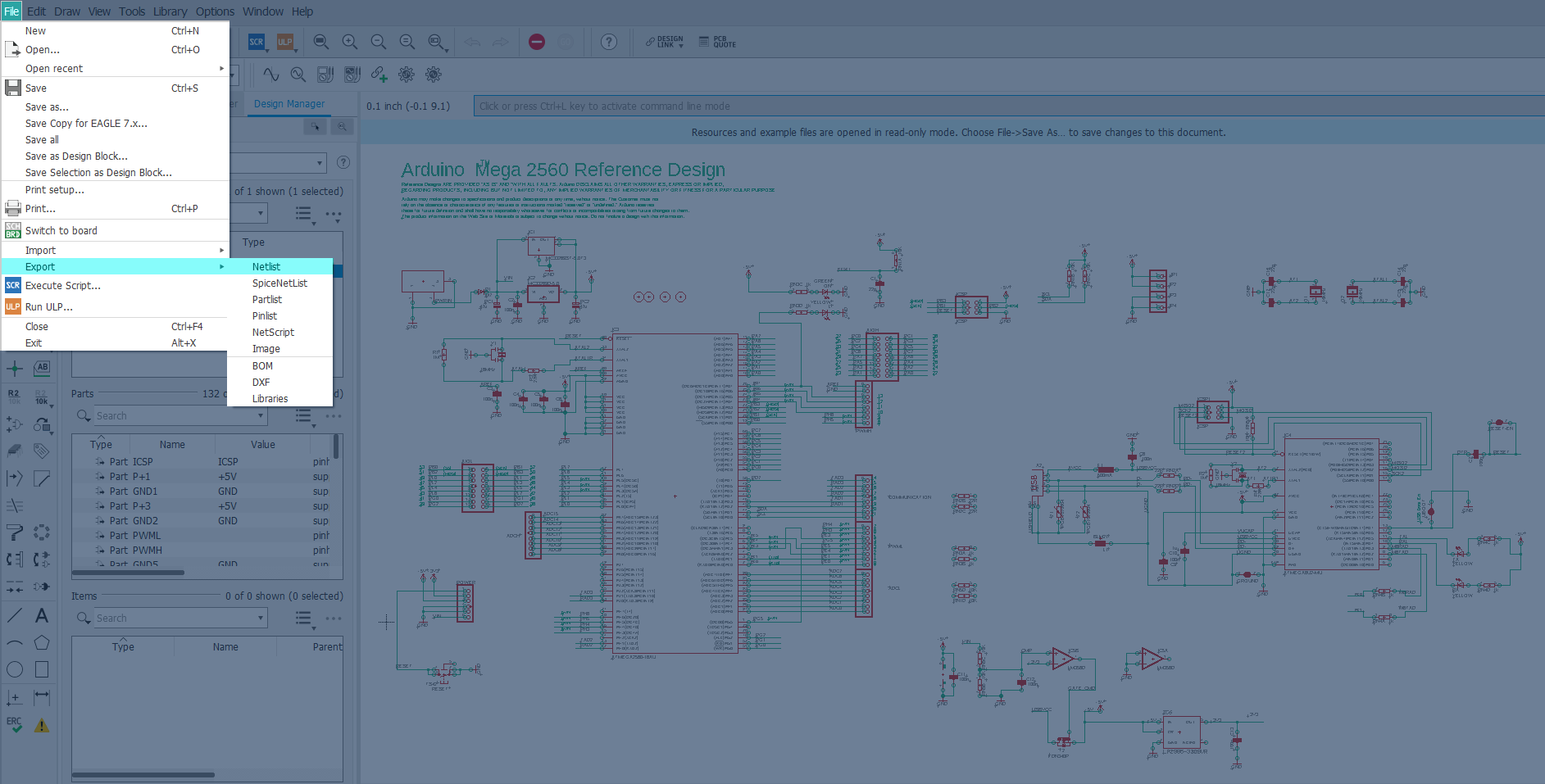
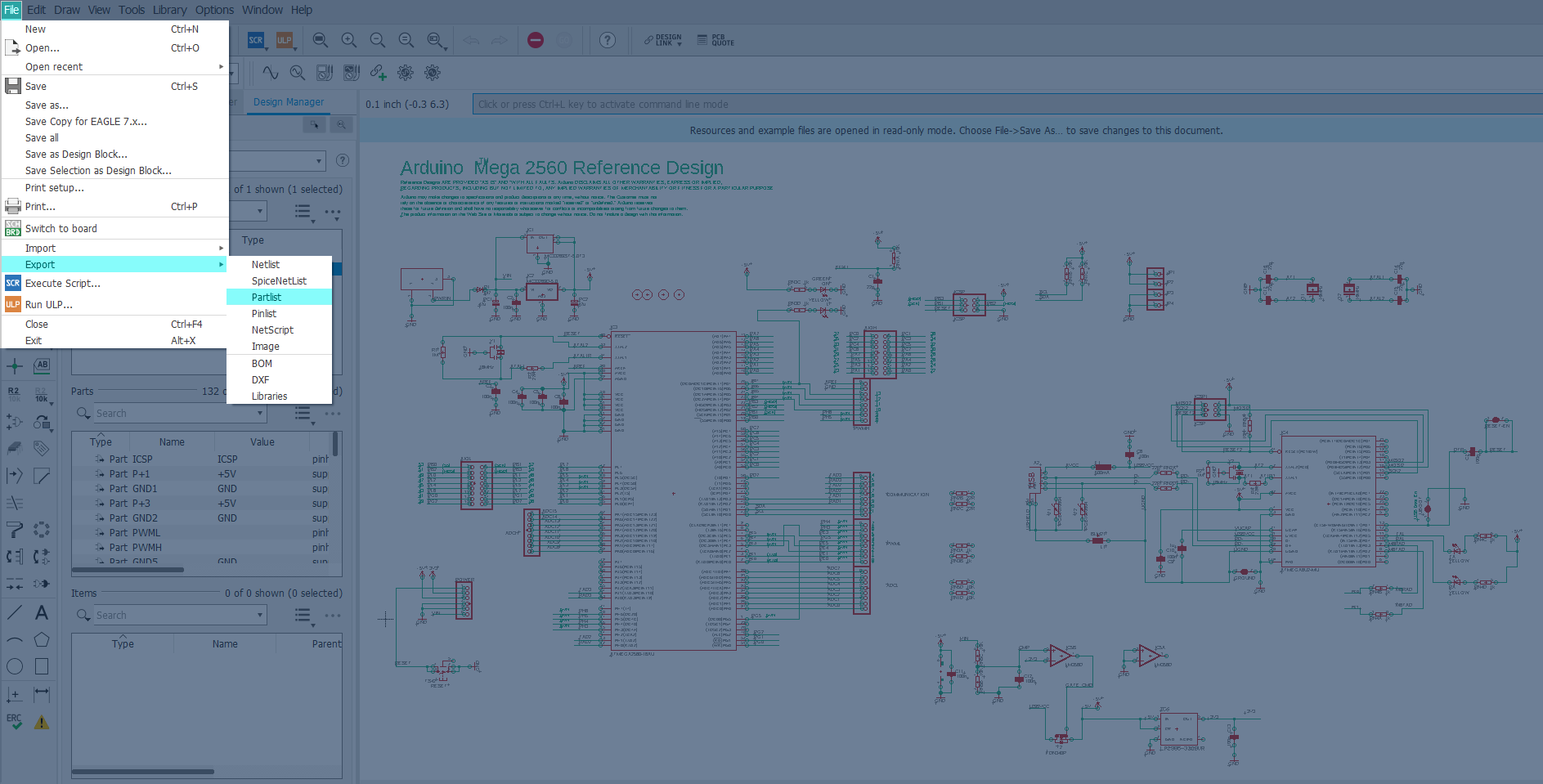
Navigate to File -> Export -> Netlist.

example

Navigate to File -> Export -> Partlist

example

Note: The Netlist file must have “netlist” in its file name, and the Partlist file must have “partlist” in its file name.

Zuken Netlist File Export

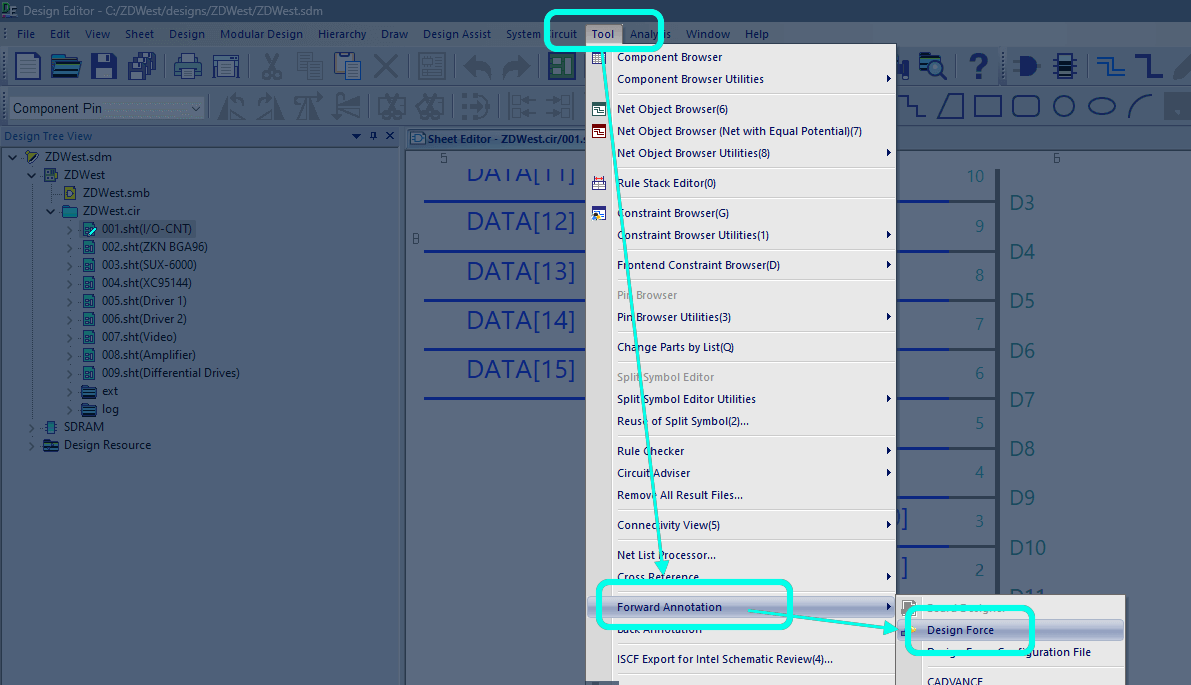
Navigate to Tool -> Forward Annotation -> Design Force.

example

Export .NDF Netlist files.